How to make SVG files for Cricut
A practical guide to making your own SVG files for Cricut, from choosing the image to a clean cut, without Illustrator or paid software.
Free mode runs in your browser. Your image never leaves your device.
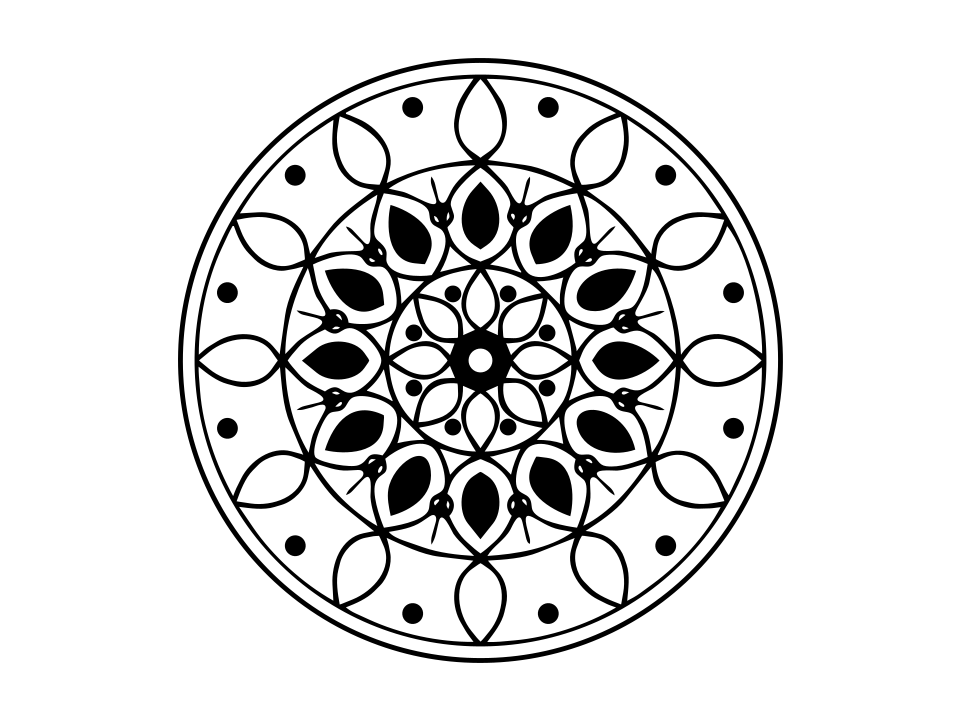
How to make SVG files step by step
You can make SVG files for Cricut for free with Vecfox, which traces any image into a cut-ready SVG in the browser with no signup.
Cricut Design Space treats SVG files as cut lines, so a traced SVG gives more control than uploading a PNG or JPG.
Vecfox Pro's Cricut preset merges shapes, keeps holes, removes tiny islands and sizes the file in inches.
What makes a good Cricut SVG
An SVG for Cricut is a set of closed shapes that the blade follows. Design Space reads every shape as a cut line, so the file should contain only what you want cut: no stray specks, no hairline slivers, no background rectangle. A good cut file looks slightly bolder and simpler than the original image, because fine details that look nice on screen tear or lift when cut in vinyl.
For a single-color decal, the whole design should end up as one layer, with holes in letters like O and A preserved as holes. For a layered design, each color is its own layer, and you cut each one on a different material.
Choose the right image
The best sources are bold and high contrast: logos, silhouettes, text, line drawings and simple illustrations. A PNG exported from Canva or Procreate at 1000 px or more traces very cleanly. Photos can work in black and white for a silhouette, or with 2 to 4 colors for a layered portrait, but they need more simplification.
Only use images you have the right to use. Converting a character or a brand logo does not give you the right to sell products with it, and craft marketplaces remove listings that infringe.
Single-layer vs layered SVG
Use black and white mode for a single-layer SVG: decals, stencils, iron-on text, cards. It thresholds the image into one color and traces it, which is exactly one cut layer.
Use color mode for a layered SVG. Set the number of colors to the number of materials you plan to cut, usually 2 to 4. Each color becomes a set of shapes you can cut separately. Every extra color adds a cut, a weed and an alignment step, so keep the count low.
Clean the file so it weeds well
Weeding is where bad files hurt. Each speck in the SVG is a tiny piece of vinyl you have to pick out, and each thin gap is a place the vinyl tears. Raise speckle removal until small dots disappear, and lower detail until edges look smooth rather than jagged.
As a rough guide, details much thinner than about 1/16 in are hard to weed in standard adhesive vinyl, and thinner still in heat transfer vinyl. If your design has very fine lines, make it larger or bolder before cutting.
Upload the SVG to Cricut Design Space
In Design Space, start a new project, click Upload, then Upload Image, and browse to your SVG. Design Space recognizes it as a cut image. Select it in your uploads and click Add to Canvas. On the phone app, tap Upload and choose the file from your files.
Check the size in inches with the lock on, and resize if needed. Use Weld to merge overlapping shapes into one cut path, Attach to keep the layout of several pieces on the mat, and Slice to cut one shape out of another.
Fixing common upload problems
If the upload fails or shows a single filled block, the file is often a PNG renamed to .svg, or an SVG with an embedded image instead of paths. A traced SVG is made only of paths and avoids that. If the file is slow to load or the canvas lags, it has too many tiny shapes: go back, raise speckle removal and lower detail.
If the design shows up the wrong size, the program that saved it used a different pixel density. Resize it in Design Space with the lock on, then save the project so you only have to do it once.
Print Then Cut images
For stickers and full-color designs, Print Then Cut may be better than a layered SVG. Upload the design, flatten it so it prints as one image, and the Cricut cuts around it. The printable area is roughly 6.75 x 9.25 in on Letter paper. A clean vector outline still helps, because the cut line follows the edge of the design.
Questions about how to make SVG files
How do I make an SVG file from an image?
Upload the image to a tracer like Vecfox, choose black and white or color mode, clean up specks, and download the SVG. The tracer turns the pixels into vector paths.
Can I make SVG files for Cricut for free?
Yes. Vecfox traces images into Cricut-ready SVGs for free in the browser, with 5 downloads a day and no signup. Inkscape is a free desktop option.
Can ChatGPT create SVG files?
Chat assistants can write simple SVG code for basic shapes, but they do not trace an existing image accurately. For a cut file from your own photo or design, use a tracer.
Why does my SVG upload to Design Space as one layer?
The design was traced in a single color, or Design Space grouped it. Trace in color mode with one color per material, then ungroup in Design Space if needed.
Can I sell SVG files I make?
Yes, if you own the rights to the original artwork. Vecfox Pro clearly allows commercial use of the output.
How do I make SVG files without Illustrator?
Use a browser tracer like Vecfox, or free desktop software like Inkscape. Neither needs an Adobe subscription.